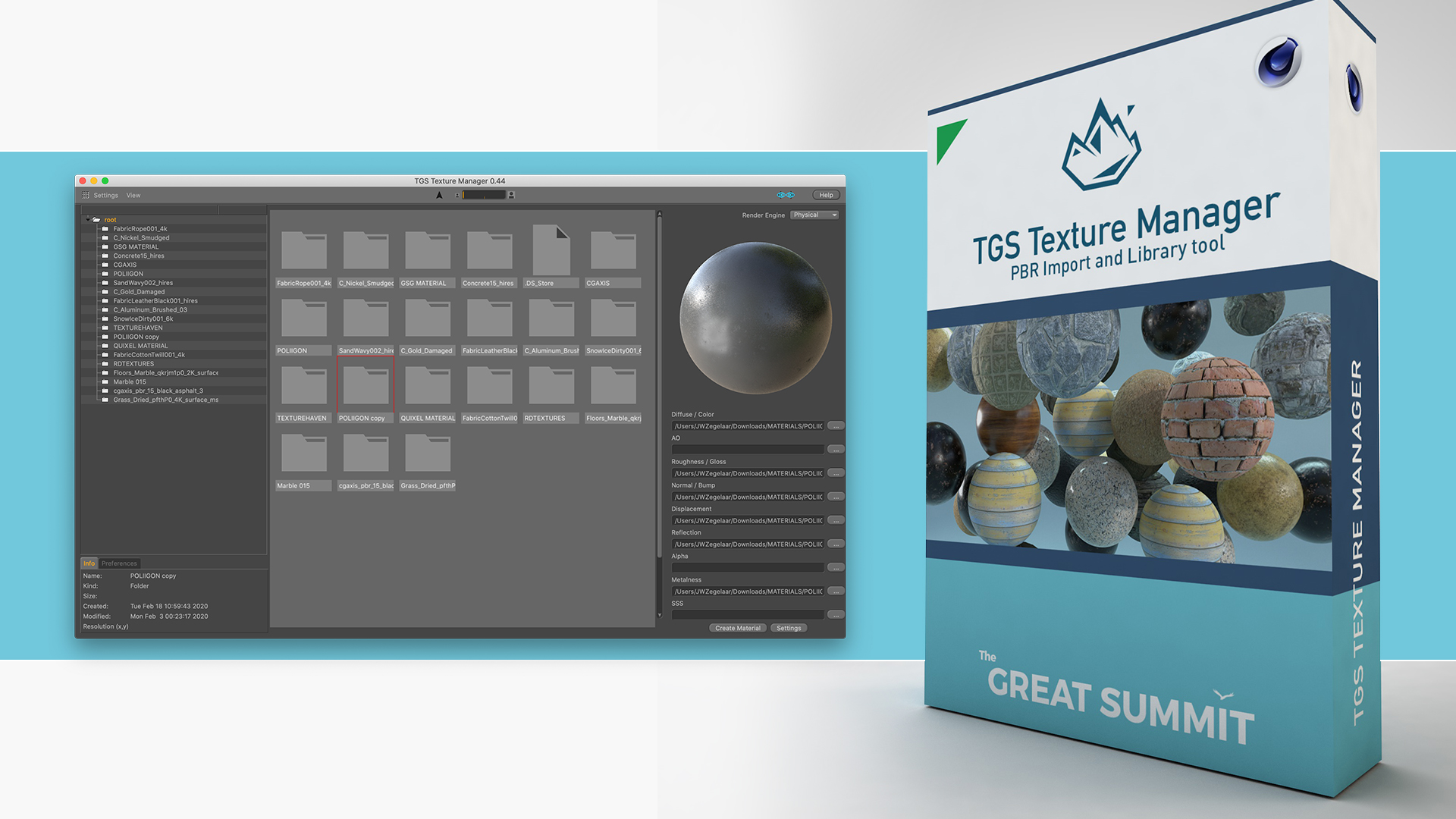
TGS Texture Manager
Import and organize all your PBR textures and own textures.
Import and organize all your PBR textures, plus your own, without leaving Cinema 4D. One click reads a texture folder, identifies each map by its name, and wires it into the correct channel for whatever render engine you use.
Preview before you import, browse your whole library from one panel, and let fast background thumbnails keep things responsive. No textures are included. Bring your own from Substance Painter, Poliigon, Quixel Megascans, RDTextures, GSG, and many more.
Import and organize PBR textures without leaving Cinema 4D.
One-click import
Point it at a texture folder and every map loads in a single click. No manual channel wiring, no dragging files one at a time.
Everything in one place
Keep your whole texture library organized and reachable from one panel, so the set you need is always a click away.
Preview before you import
See each texture before it lands in your scene, so you pick the right set the first time instead of importing and undoing.
Works with almost any source
Substance Painter, Poliigon, Quixel Megascans, RDTextures, GSG, and your own textures. Editable search values teach it new naming schemes.
Fast background thumbnails
Thumbnails generate in the background, so browsing stays responsive even with large libraries.
Every major engine
Physical, Standard, ProRender, Redshift, Octane, V-Ray, Arnold, and Corona. Each map is wired into the right channel for your engine.
Two short walkthroughs, from setup to every feature.
Tip: press F on any video for fullscreen.
Built for real texturing work.



Good to know.
How does the smart import work?
It looks inside your texture folder and searches filenames for keywords (for example COL, Color, Diffuse, or Albedo for the color map) to recognize each surface type, then assigns every texture to the correct channel. The keyword list lives in a SearchValues text file inside the plugin, so you can adjust it to match any naming scheme.
How do I install the plugin?
Place it inside your Maxon plugin directory and restart Cinema 4D. That is all it takes.
Is there a license key?
No. There is no software license attached to the plugin. Add it to your Maxon plugin directory and it works straight away. No serial is needed at checkout.
Does it support Cycles 4D?
Not currently. Cycles 4D has no Python support for its engine, so the plugin cannot wire textures into it yet.
Are any textures included?
No textures are included. The plugin imports and organizes your own libraries, whether from Substance Painter, Poliigon, Quixel Megascans, RDTextures, GSG, or textures you made yourself.
Everything you need to know.
- Version
- 2.05
- Host application
- Cinema 4D R19 or later
- Latest C4D supported
- Cinema 4D R2026
- Render engines
- Physical · Standard · ProRender · Redshift · Octane · V-Ray · Arnold · Corona
- Platform
- macOS · Windows
- License key
- Not required, no serial needed at checkout
- Included textures
- None · bring your own